Goldendog Firewall
Goldendog Firewall is a simple graphical interface for UFW (Uncomplicated Firewall), the firewall tool used by Debian and GoldenDog Linux. It lets you turn the firewall on or off, choose the default policy for incoming and outgoing traffic, and create your own rules without having to remember any ufw commands.
Installation
Goldendog Firewall is available from the GoldenDog repository. If it is not already installed on your system, you can install it with:
sudo apt update
sudo apt install goldendog-firewall
Once installed, open it from your application menu (look for Goldendog Firewall under System or Settings), or run goldendog-firewall from a terminal.
The Main Window
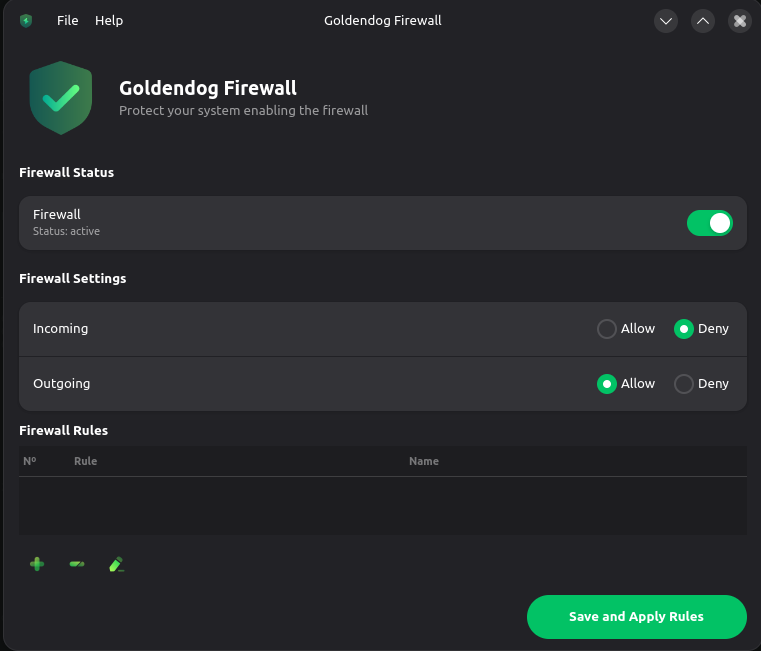
The main window is divided into three sections.
Firewall Status
The Firewall switch turns UFW protection on or off. The text below it shows the current state of your system:
- Status: active: the firewall is running and filtering traffic.
- Status: inactive (enabling it is recommended): the firewall is off and all traffic is allowed.
When the application starts, it reads your current UFW configuration, so the switch and the options below always reflect what your system is actually using.
Firewall Settings
These are the default policies, which apply to any connection that is not matched by a specific rule:
| Setting | Recommended | What it means |
|---|---|---|
| Incoming | Deny | Other devices cannot start connections to your computer unless a rule allows it. |
| Outgoing | Allow | Your computer can connect freely to the internet and to your local network. |
For a desktop or laptop, the safest choice is Firewall on, Incoming: Deny, Outgoing: Allow. Your web browser, updates and other apps will keep working normally, while unsolicited connections from outside are blocked.
Firewall Rules
Rules are exceptions to the default policies. For example, if incoming traffic is denied but you run an SSH server, you can add a rule that allows port 22.
When the window opens, Goldendog Firewall reads the rules that UFW currently has, including rules created from the terminal, and shows them in the table. Reading them requires administrator privileges, so the system asks for your password. If you cancel, you can still add new rules, and the Load rules button lets you try again.
Use the buttons below the table to manage your rules:
- Add rule (green +): opens the Add a Firewall Rule dialog.
- Remove selected rule (−): removes the selected rule. If the rule was already in the firewall, it is deleted from UFW when you save your changes.
- Edit selected rule (pencil): opens the selected rule so you can modify it. When you save, the old rule is replaced by the new one.
You can also right-click a rule to edit or delete it. The rule's Name is stored in UFW as the rule's comment, so you will see it again the next time you open the application.
Some rules created outside Goldendog Firewall cannot be represented in the form, for example rules made with ufw limit, application profiles such as OpenSSH, or routing rules. When you try to edit one of them, the application explains why. You can still delete it and add a new one.
Adding a Rule
The Add a Firewall Rule dialog has two tabs: Simple and Advanced.
Simple Rules
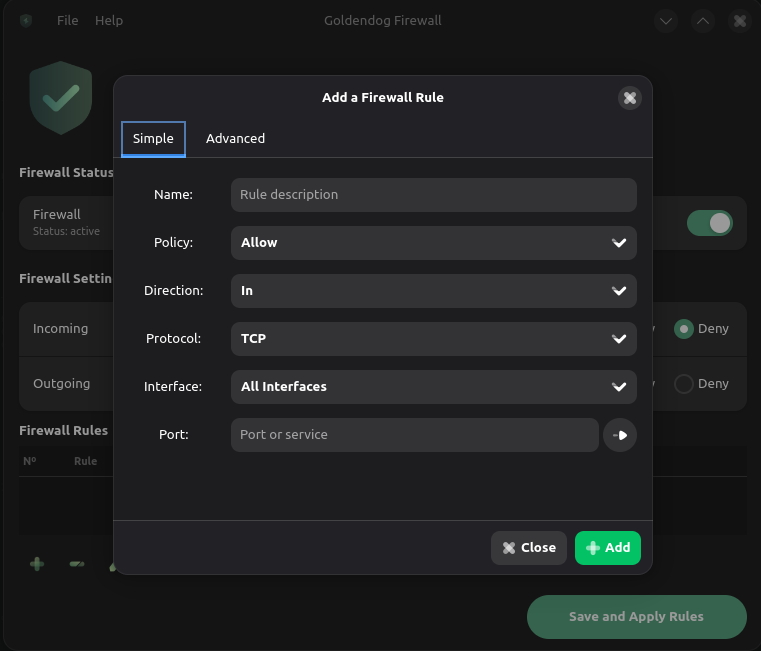
The Simple tab covers the most common case: opening or closing a port.
| Field | Description |
|---|---|
| Name | A description to help you remember what the rule is for (for example, SSH server). |
| Policy | Allow lets the traffic through, Deny silently drops it, and Reject blocks it and notifies the sender. |
| Direction | In for incoming traffic, Out for outgoing traffic, or Both. |
| Protocol | TCP, UDP, or Both. |
| Interface | Apply the rule to all network interfaces or only to a specific one (for example, wlan0 or enp3s0). |
| Port | A port number (22), a range (6000:6007), a list (80,443) or a service name known to the system (ssh, http). Ranges and lists require choosing TCP or UDP as the protocol, not Both. |
Example: to allow SSH connections to your computer, use Policy: Allow, Direction: In, Protocol: TCP and Port: 22.
Advanced Rules
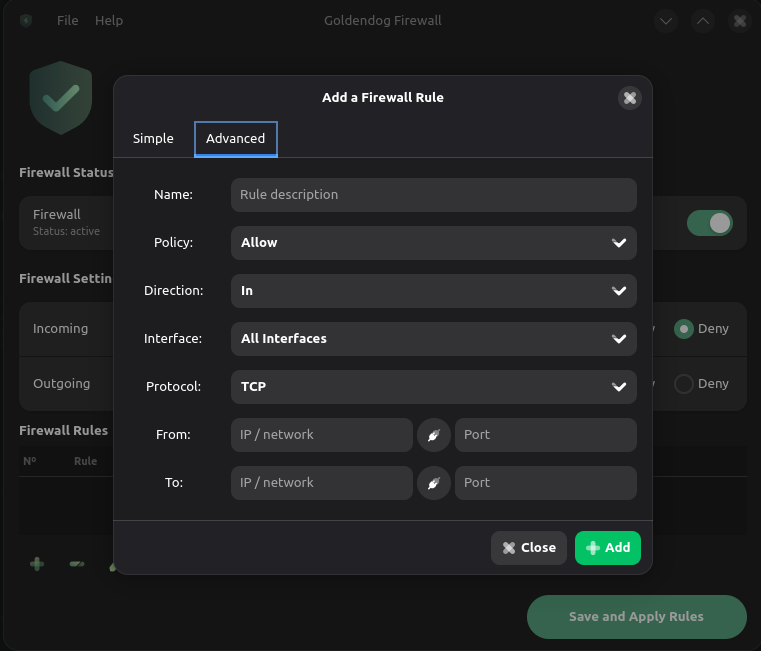
The Advanced tab lets you also filter by source and destination:
| Field | Description |
|---|---|
| From | The IP address or network the traffic comes from (for example, 192.168.1.50 or 192.168.1.0/24) and, optionally, the source port. |
| To | The IP address or network the traffic is going to and, optionally, the destination port. |
Leaving an address empty means any address.
Example: to allow SSH only from devices on your home network, use Policy: Allow, Direction: In, Protocol: TCP, From: 192.168.1.0/24 and To: port 22.
Applying Your Changes
Changes made in the window are not applied immediately. When you are done, click Save and Apply Rules. Since changing the firewall requires administrator privileges, the system asks for your password. It is remembered for a few minutes, so you will not be asked again for every change. If you cancel, the application shows Nothing was changed.
Goldendog Firewall then applies the default policies, deletes the rules you removed or edited, adds the new ones, and enables or disables the firewall according to the switch. A confirmation message appears at the bottom of the window, and the rules list is reloaded from UFW.
If UFW reports an error while applying your changes, Goldendog Firewall restores the previous rules automatically, so the firewall is never left half-configured. A dialog shows the error reported by UFW.
Once applied, the rules are saved by UFW and remain active after a reboot.
Checking from the Terminal
You can also list every rule that is currently active from a terminal:
sudo ufw status numbered
If you want to start over from a clean configuration, you can reset UFW completely. This removes all rules and disables the firewall, so remember to turn it back on afterwards from Goldendog Firewall:
sudo ufw reset

